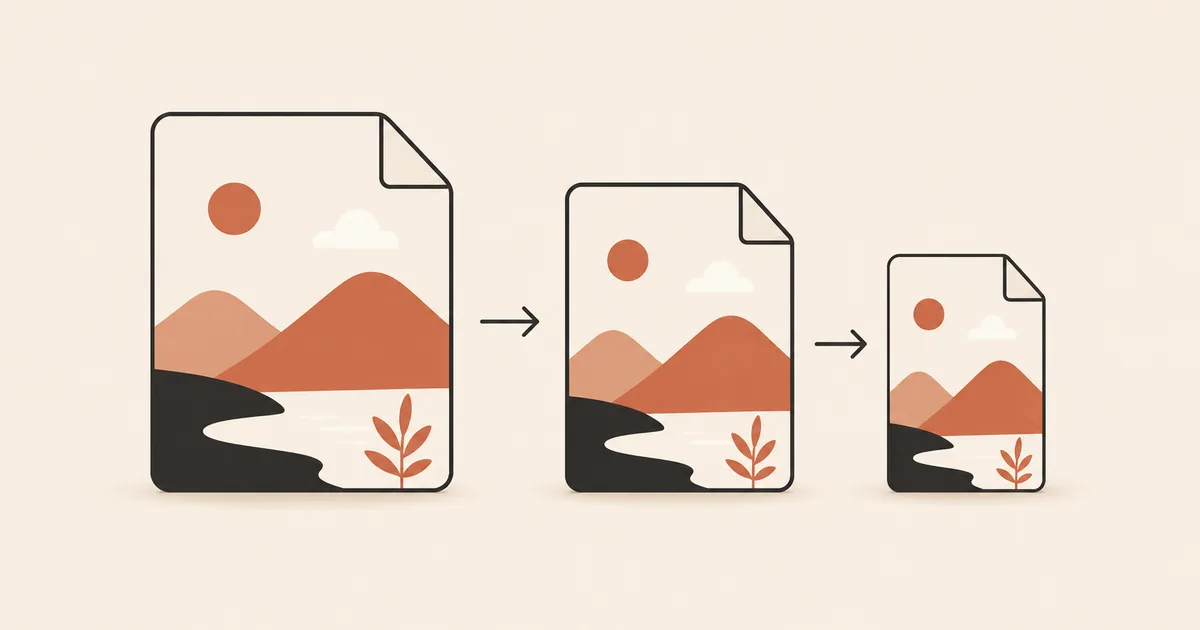
Every image file you see on the web has been compressed. The compression method determines both the file size and whether any visual information was lost in the process. Understanding the difference between lossy and lossless compression helps you make the right format choice for every image on your website.
This guide explains how each method works, when to use which, and how to choose the right settings.
How Lossy Compression Works
Lossy compression reduces file size by permanently removing visual data. The encoder analyzes the image and discards information that the human visual system is least likely to notice: subtle color variations, fine high-frequency textures, and noise.
The process is irreversible. Once data is removed, it cannot be recovered. Compressing an already-compressed lossy image a second time removes even more data, which is why you should always compress from the highest quality source available.
Lossy compression in practice:
- JPG uses the Discrete Cosine Transform (DCT) to divide the image into 8x8 pixel blocks and remove high-frequency components within each block. At low quality settings, this produces the characteristic "blocky" JPG artifacts.
- WebP lossy uses a predictive coding scheme derived from the VP8 video codec. It analyzes each block of pixels by predicting its content from neighboring blocks, then encodes only the difference. This produces fewer visible artifacts than JPG at equivalent file sizes.
- AVIF lossy uses intra-frame coding from the AV1 video codec. It operates on variable-size blocks (up to 128x128 pixels) with more sophisticated prediction models. This results in superior compression efficiency, especially on photographic content with gradients and textures.
How Lossless Compression Works
Lossless compression reduces file size without discarding any data. The decompressed image is bit-for-bit identical to the original. This is achieved through more efficient encoding of the pixel data, not through data removal.
Common lossless techniques:
- Run-length encoding: replaces sequences of identical values with a count and a value. Effective on images with large areas of the same color.
- Huffman coding: assigns shorter binary codes to frequently occurring values and longer codes to rare values.
- LZ77 and derivatives: find and reference repeated patterns within the data stream.
- Prediction filters: predict each pixel's value based on its neighbors, then encode only the difference. Small differences compress better than raw pixel values.
Lossless compression in image formats:
- PNG uses a combination of prediction filters and DEFLATE compression (LZ77 + Huffman coding). It achieves typical compression ratios of 2:1 to 3:1 on photographic content, and much higher ratios on graphics with flat colors.
- WebP lossless uses a more advanced prediction model with color cache, backward references, and entropy coding. It consistently produces files 25 to 30% smaller than PNG.
- AVIF lossless uses AV1 intra-frame coding in lossless mode. Results are comparable to WebP lossless, sometimes slightly smaller.
Visual Quality Comparison
The visual difference between lossy and lossless depends entirely on the compression level and the image content.
At quality 80 to 90 (lossy): the compressed image is perceptually identical to the lossless original for photographic content. No visible artifacts at normal viewing distance. This is the standard range for web images.
At quality 60 to 79 (lossy): minor quality differences may be visible on close inspection, particularly on sharp edges, fine text, and smooth gradients. At normal web viewing size, most users will not notice.
At quality 40 to 59 (lossy): artifacts become visible. JPG shows blocky distortions, WebP shows softening and occasional ringing around edges, AVIF handles this range better but still shows smoothing of fine textures.
At quality below 40 (lossy): clearly degraded. Only acceptable for tiny thumbnails where detail is not important.
Lossless: pixel-perfect reproduction. The decompressed image is mathematically identical to the source. File sizes are 3 to 10 times larger than lossy at quality 80.
When to Use Lossy Compression
Lossy compression is the right choice for the vast majority of web images. Use it when:
- Photographic content: photos, hero images, product images, banners, backgrounds. Human vision is tolerant of lossy compression on natural imagery.
- Performance matters: every web page where load time is important. Lossy compression delivers 50 to 80% file size reduction compared to lossless.
- Social media and content platforms: images that will be viewed quickly at screen resolution, not zoomed in for inspection.
- Thumbnails and previews: aggressive lossy compression (quality 60-70) is perfectly acceptable for small display sizes.
Recommended formats for lossy compression: WebP for broad compatibility, AVIF for maximum compression, JPG when legacy support is required.
When to Use Lossless Compression
Lossless compression is necessary when pixel accuracy matters more than file size:
- Screenshots and technical diagrams: lossy compression creates artifacts around text and sharp lines, making text harder to read and diagrams inaccurate.
- Logos and icons: flat-color graphics with sharp edges suffer from lossy ringing artifacts. Lossless preserves crisp edges. (SVG is often an even better choice for vector graphics.)
- Medical and scientific imaging: any context where altering pixel values could affect interpretation requires lossless compression.
- Source files for further editing: if the image will be processed again later (cropping, color correction, compositing), start from a lossless source to avoid cumulative quality loss.
- Pixel art: lossy compression destroys the sharp pixel boundaries that define pixel art style.
Recommended formats for lossless compression: WebP lossless for smallest file size, PNG for maximum compatibility.
Can You Combine Both?
Yes. The most effective web image strategy combines both compression types:
Use lossy for photographs and continuous-tone images. These are typically the heaviest images on your pages and benefit the most from lossy compression.
Use lossless for graphics, text overlays, and icons. These images are usually smaller to begin with, and the quality difference from lossy compression is more visible.
Use the <picture> element to serve multiple formats. Combine AVIF (best lossy compression) with WebP fallback and JPG as the last resort:
<picture>
  <source srcset="photo.avif" type="image/avif">
  <source srcset="photo.webp" type="image/webp">
  <img src="photo.jpg" alt="Description" width="800" height="600">
</picture>
Use progressive enhancement. Serve AVIF to the 93% of browsers that support it, WebP to the remaining modern browsers, and JPG to legacy browsers. Each user gets the best compression their browser can handle.
The key insight: you do not have to choose one compression type for your entire site. Match the method to the content, image by image.
Compress Your Images
Morphix compresses JPG, PNG, and WebP images directly in your browser. Choose lossy for photos, lossless for graphics. No registration required for the free plan.