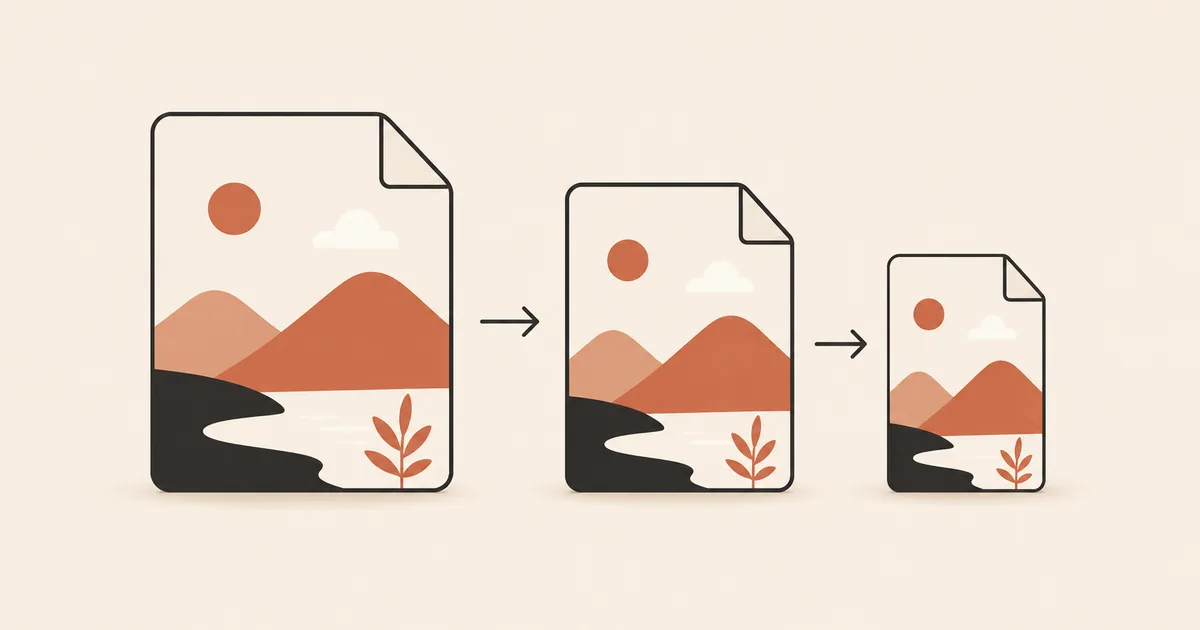
Every image on your website is served in a format, and that choice affects page speed, visual quality, and bandwidth costs. JPG, PNG, and WebP each solve different problems. Using the wrong format means either bloated files, missing transparency, or unnecessary quality loss.
This guide compares all three formats with concrete numbers, explains when each one makes sense, and shows you how to migrate to WebP without breaking anything.
What Each Format Does Best
JPG is a lossy format designed for photographic content. It produces small files by discarding visual information that the human eye is unlikely to notice. It does not support transparency or lossless compression. JPG is universal: every browser, email client, and operating system handles it.
PNG is a lossless format designed for images that require perfect pixel accuracy. It excels at graphics with sharp edges, text overlays, logos, icons, and anything with transparency. PNG files are significantly larger than JPG for photographic content because lossless compression preserves every pixel.
WebP is a modern format developed by Google that combines the strengths of both. It supports lossy compression (like JPG), lossless compression (like PNG), transparency (like PNG), and animation (like GIF). It produces smaller files than both JPG and PNG in virtually every scenario.
Compression | File Size Compared
File size is the most practical differentiator for web performance. Here is a comparison on a typical 1200x800 photo:
| Format | Mode | Typical file size | vs JPG |
|---|---|---|---|
| JPG (Q85) | Lossy | 350 KB | Baseline |
| PNG | Lossless | 1.8 MB | +414% |
| WebP (Q80) | Lossy | 240 KB | -31% |
| WebP | Lossless | 1.1 MB | +214% |
For photographic images, WebP lossy is consistently 25 to 35% smaller than JPG at equivalent quality. PNG is not a viable option for photos because lossless encoding produces files 4 to 5 times larger.
For graphics with flat colors and sharp edges (logos, diagrams, screenshots), the picture changes:
| Format | Mode | Typical file size |
|---|---|---|
| PNG | Lossless | 45 KB |
| WebP | Lossless | 32 KB |
| JPG (Q90) | Lossy | 55 KB (with artifacts on edges) |
WebP lossless beats PNG by 25 to 30% on this type of content. JPG is the worst choice here because lossy compression creates visible ringing artifacts around sharp edges and text.
Transparency and Lossless Support
| Feature | JPG | PNG | WebP |
|---|---|---|---|
| Transparency (alpha) | No | Yes | Yes |
| Lossless compression | No | Yes | Yes |
| Lossy compression | Yes | No | Yes |
| Animation | No | No (APNG exists but limited) | Yes |
If your image needs transparency, JPG is immediately ruled out. The choice is between PNG and WebP. WebP produces smaller files with transparency in both lossy and lossless modes, making it the better option when browser support is not a concern.
For images that require pixel-perfect reproduction (technical diagrams, screenshots of text, medical imaging), use lossless WebP or PNG. Lossy formats like JPG introduce artifacts that can alter fine details.
Browser Support in 2026
| Browser | JPG | PNG | WebP |
|---|---|---|---|
| Chrome | Yes | Yes | Yes |
| Firefox | Yes | Yes | Yes |
| Safari | Yes | Yes | Yes (14+) |
| Edge | Yes | Yes | Yes |
| IE 11 | Yes | Yes | No |
WebP is supported by 97% of browsers globally in 2026. The only holdout of any significance is Internet Explorer 11, which Microsoft itself no longer supports. For all practical purposes, WebP has universal browser support.
If you still need to account for the remaining 3%, use the <picture> element to serve WebP with a JPG or PNG fallback:
<picture>
  <source srcset="image.webp" type="image/webp">
  <img src="image.jpg" alt="Description" width="800" height="600">
</picture>
Which Format for Which Use Case?
| Use case | Best format | Why |
|---|---|---|
| Photos, hero images | WebP lossy | Smallest file, good quality |
| Product images (e-commerce) | WebP lossy | Performance directly affects conversions |
| Logos, icons | SVG or WebP lossless | Scalable, sharp at any size |
| Screenshots, diagrams | WebP lossless or PNG | Pixel-perfect, sharp text |
| Images with transparency | WebP lossy (with alpha) | Smaller than PNG with alpha |
| Thumbnails | WebP lossy (Q70) | Aggressive compression acceptable |
| Email templates | JPG | Best email client compatibility |
| Social media Open Graph | JPG | Crawlers prefer JPG |
| Print-ready images | JPG or TIFF | Print workflows expect these formats |
The general rule: use WebP for anything on the web, JPG for email and social sharing, PNG only when you need lossless quality and cannot use WebP.
How to Migrate Your Website to WebP
Migrating to WebP does not have to be a big-bang operation. Here is a practical approach:
Step 1: Start with your largest images. Identify the 10 to 20 heaviest images on your site (hero banners, product photos, background images). Converting these alone can save several megabytes of bandwidth per page.
Step 2: Use the <picture> element. Serve WebP to modern browsers and keep the original JPG or PNG as a fallback. This is a zero-risk approach because no user sees a broken image.
Step 3: Convert in bulk. Use an online converter or an API to process all your images. Morphix supports batch conversion through its API.
Step 4: Update your build pipeline. If you use a static site generator, a CMS, or a CI/CD pipeline, add a WebP conversion step so every new image is automatically converted.
Step 5: Set cache headers. WebP images should be cached aggressively. Set Cache-Control: public, max-age=31536000, immutable for hashed filenames to avoid re-downloads.
Convert Your Images
Morphix converts JPG and PNG images to WebP directly in your browser. No registration required for the free plan.